A fully automated Workbench workflow can be created to have a one-click workflow. As workbench can be scripted and used in batch mode, one may - from a single command line input - run an entire workflow that creates/modifies geometry in Discovery, mesh and pre-process the model in Mechanical, solve, and post-process still in Mechanical.
Objective:
This series of post will detail each steps and the script associated which are:
1. Workbench python script & the batch command to launch this script from a single command line - Current Post
2. Discovery python script to create a geometry from scratch: https://discuss.ansys.com/discussion/10616/discovery-geometry-scripting-pipe-geometry-creation-from-scratch?new=1
3. Mechanical python script to pre and post-process the static structural model: https://discuss.ansys.com/discussion/10617/mechanical-scripting-pipe-model-pre-post-processing?new=1
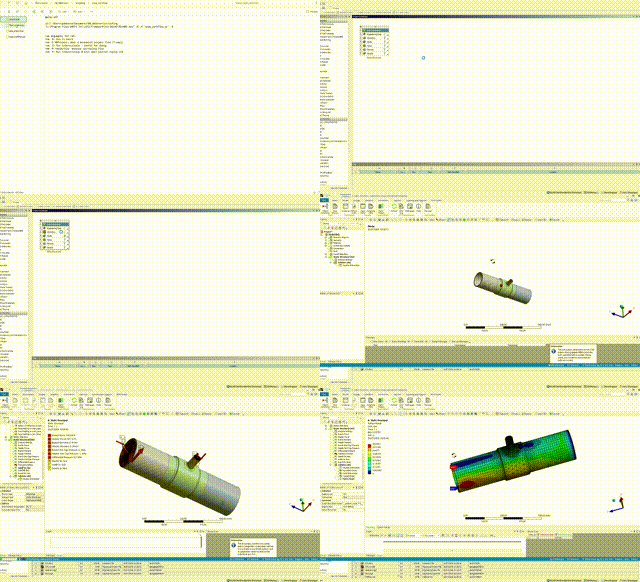
Workbench script: Create a static structural box in Workbench, and sending scripts 2 and 3 to Discovery and Mechanical respectively.
In Workbench, you can record all your actions in python script by going in "File" --> "Scripting"--> "Record Journal...". Don't forget to "Stop Recording" at the same location when finished.
The WB script is the following and assumes that scripts 2 and 3 already exist and are stored in the same folder:
# 1 - CREATE WORKBENCH ANALYSIS SYSTEMS
static_struct_system = GetTemplate(TemplateName="Static Structural",Solver="ANSYS")
pipe_workflow = static_struct_system.CreateSystem()

# 2 - SEND SCRIPT TO DISCOVERY
pipe_geom=pipe_workflow.GetContainer(ComponentName="Geometry")
pipe_geom.Edit(IsDiscoveryGeometry=True,Interactive=True)    # Run Discovery

with open(r'Pipe_creation.py') as f:
    PyDisco_commands=f.read()
pipe_geom.SendCommand(Language="Python", Command=PyDisco_commands)
pipe_geom.Exit()

# 3 - SEND SCRIPT TO MECHANICAL
pipe_analysis=pipe_workflow.GetContainer(ComponentName="Model") # Get Mechanical Tree data
pipe_analysis.Edit(Hidden=False)                # Run Mechanical in foreground

#Read an external file containing the code
with open(r'pipe_prepost.py') as f:
    PyMech_commands=f.read()

pipe_analysis.SendCommand(Language="Python", Command=PyMech_commands)
It will be faster to run both Discovery and Mechanical in background mode (Interactive=False for Disco, Hidden=True for Mechanical in the corresponding lines above).
Now to launch Workbench in batch mode, you can simply use:
cd PathToYourFolder
"C:\Program Files\ANSYS Inc\v252\Framework\bin\Win64\RunWB2.exe" -B -R "pipe_workflow.py" -X
To have more information on the available arguments, see the help page here https://ansyshelp.ansys.com/public/account/secured?returnurl=/Views/Secured/corp/v252/en/wb2_js/wb2js_cmdlineexec.html