It comes up sometimes you may want to modify the mesh (move it, or add to it) and display some custom results on it. You can do this in Mechanical by a python result with DPF.
Below is an example of the code I used in a python results object to do something on the attached model.
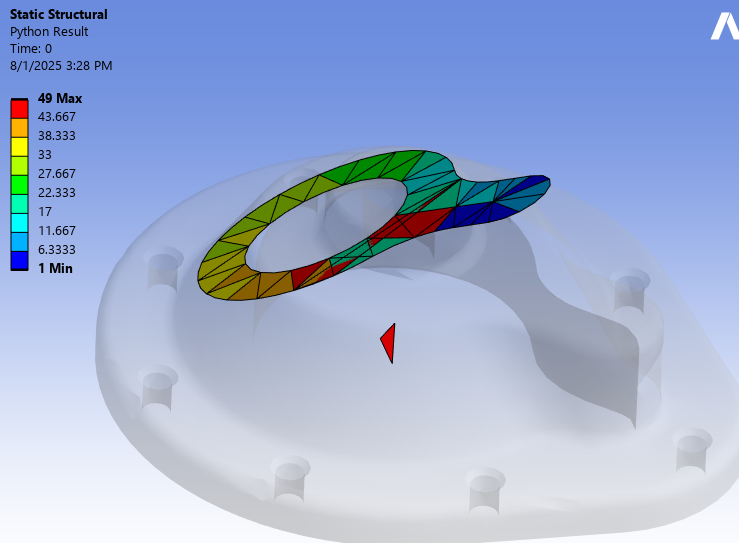
You can see in the screenshot the mesh is moved and rotated from the body. I also have made new random elements in addition to the extracted mesh.
This is somewhat trivial in the example, but shows a powerful tool to generate any mesh, with any contours on it for visualization within this framework.
import mech_dpf
import Ans.DataProcessing as dpf
mech_dpf.setExtAPI(ExtAPI)

def post_started(sender, analysis):# Do not edit this line
    define_dpf_workflow(analysis)

def RotationMatrixFieldFromCS(CsName):
    """
    Use this to get a DPF rotation matrix from a CS.
    """
    CS = ExtAPI.DataModel.GetObjectsByName(CsName)[0]
    CsMatrix = list(CS.Matrix)
    TransformMatrix = [CsMatrix[i] for i in [0,3,6,1,4,7,2,5,8]]
    rot_mat_f = dpf.FieldsFactory.CreateScalarField(1)
    rot_mat_f.Data = TransformMatrix
    return rot_mat_f

def define_dpf_workflow(analysis):
    dataSource = dpf.DataSources(analysis.ResultFileName)

    #get the node ids for what you want to use
    node_ids = ExtAPI.DataModel.GetObjectsByName("MyNodes")[0].Ids
    mesh_scoping = dpf.MeshScopingFactory.NodalScoping(node_ids)

    #get the mesh from the .rst file
    mesh_provider_op = dpf.operators.mesh.mesh_provider()
    mesh_provider_op.inputs.data_sources.Connect(dataSource)
    dpf_mesh= mesh_provider_op.outputs.mesh.GetData()

    #create a skin/surface mesh on top of the nodes.
    #This is a DPF mesh entity, not in the .rst file
    #this is what will be plotted in mechancial
    skin_op = dpf.operators.mesh.skin()
    skin_op.inputs.mesh.Connect(dpf_mesh)
    skin_op.inputs.mesh_scoping.Connect(mesh_scoping)
    skin_mesh = skin_op.outputs.mesh.GetData()

    #Add an arbitrary element to the mesh connected to nodes 1,2,3
    skin_mesh.AddShellElement(skin_mesh.ElementCount+1, [1,2,3])

    #Add new nodes and a new element to them
    #This is just to show you can make any mesh you want and plot anything on it.
    elem_size= Quantity(10,'mm')
    elem_size_mesh_unit = Ansys.Core.Units.UnitsManager.ConvertUnit(elem_size.Value, elem_size.Unit, 'm')
    skin_mesh.AddNode(skin_mesh.NodeCount+1, [0.,0.,0.])
    skin_mesh.AddNode(skin_mesh.NodeCount+1, [0.,0.,elem_size_mesh_unit])
    skin_mesh.AddNode(skin_mesh.NodeCount+1, [0.,elem_size_mesh_unit,elem_size_mesh_unit])
    nd_indicies=range(skin_mesh.NodeCount-3, skin_mesh.NodeCount)
    skin_mesh.AddShellElement(skin_mesh.ElementCount+1, nd_indicies)

    #Get the element Ids just as something to plot on the elements
    elem_id_field = dpf.Field()
    elem_id_field.ScopingIds=skin_mesh.ElementIds
    elem_id_field.Data=[float(Id) for Id in skin_mesh.ElementIds]
    elem_id_field.Location=dpf.locations.elemental

    #Rotate the mesh just to show you can move it around in post.
    op = dpf.operators.geo.rotate() # operator instantiation
    op.inputs.field.Connect(skin_mesh.CoordinatesField)
    my_field_rotation_matrix=RotationMatrixFieldFromCS("ResultCS")
    op.inputs.field_rotation_matrix.Connect(my_field_rotation_matrix)
    rotated_coords_field = op.outputs.field.GetData()
    skin_mesh.CoordinatesField.Data = rotated_coords_field.Data

    #Make the workflow object as standard practice to plot.
    dpf_workflow = dpf.Workflow()
    #Plot the element ids
    dpf_workflow.SetOutputContour(elem_id_field)
    #plot this on the DPF skin mesh we created on the fly earlier.
    dpf_workflow.SetOutputMesh(skin_mesh)

    #Finish it up....
    dpf_workflow.Record('wf_id', False)
    this.WorkflowId = dpf_workflow.GetRecordedId()